Complete MetaTrader Shortcuts Guide for MT4 & MT5 Trading Platforms

MetaTrader 4 and MetaTrader 5 are powerful trading platforms that offer a wide range of useful features. Various tools could be launched via the on-screen menus, though it can sometimes be quicker and more convenient to access them using MT4 shortcuts or MT5 hotkeys.
MetaTrader shortcuts, or hotkeys, are a key or a set of keys designed to perform certain predefined actions more efficiently. These actions can also be completed using your touchpad or mouse, but using shortcuts may reduce the number of manual navigation steps and streamline the overall experience, allowing more time to focus on chart analysis.
In this article, we will learn several MT4 shortcuts and MT5 hotkeys, and also explain how to create personalised shortcut combinations to suit your preferred trading setup.
.png)
Table of Contents
MetaTrader Hotkey for Changing Chart Types
In MetaTrader, you can switch between different chart styles as per your preferences. The candlestick chart is the most popular among traders for identifying price patterns. While the bar chart provides a cleaner view of price movements and the line chart helps visualise broader trends.
Accordingly, you may use hotkeys (ALT + 1, 2, or 3), which makes changing chart types quicker than navigating through the “Charts” menu. This shortcut may help a trader with a smoother workflow and also reduce the use of the touchpad or a mouse. This may be useful when analysing multiple instruments.
Let’s look at a quick reference for chart type switching and additional chart timeframe hotkeys:
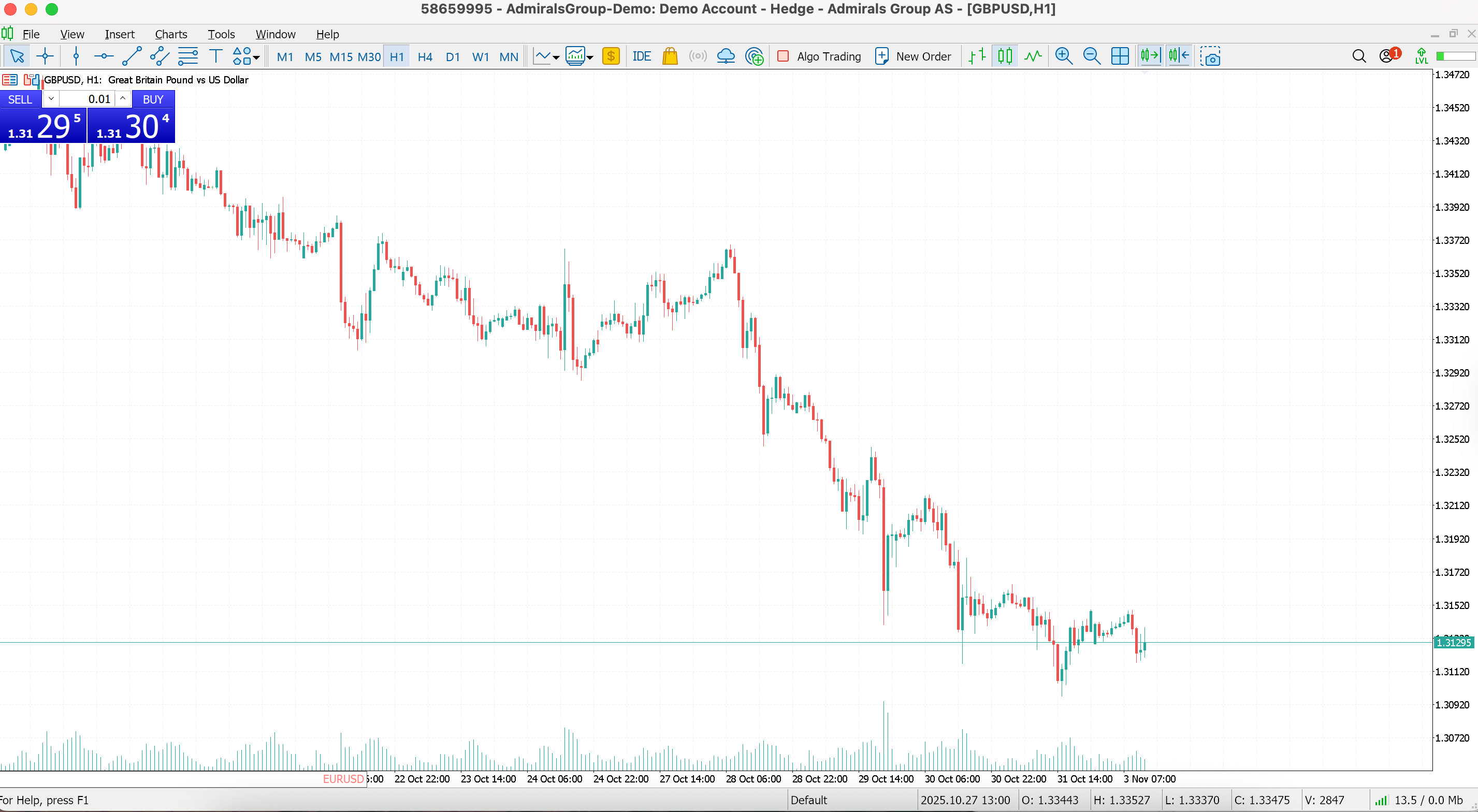
Typing 'ALT+2' provides you with a candlestick chart, as shown in the image below:
MetaTrader Hotkeys for Moving Through a Chart
Efficient chart navigation may make the analysis smoother. Instead of relying solely on the mouse, using MetaTrader hotkeys for chart scrolling and zoom control offers a quicker and more precise way to explore market data.
Below is a summary of useful navigation hotkeys:
Essential MetaTrader Hotkeys for Daily Operations
Day-to-day tasks in MetaTrader often include opening new trades, adjusting charts, and switching between tools. Getting to know these essential hotkeys may make your routine feel more organised.
Fast Navigation box
Pressing the 'Enter' key opens the 'Fast Navigation' box. This is a small box that appears on the bottom left hand-side of the price chart and has multiple uses.
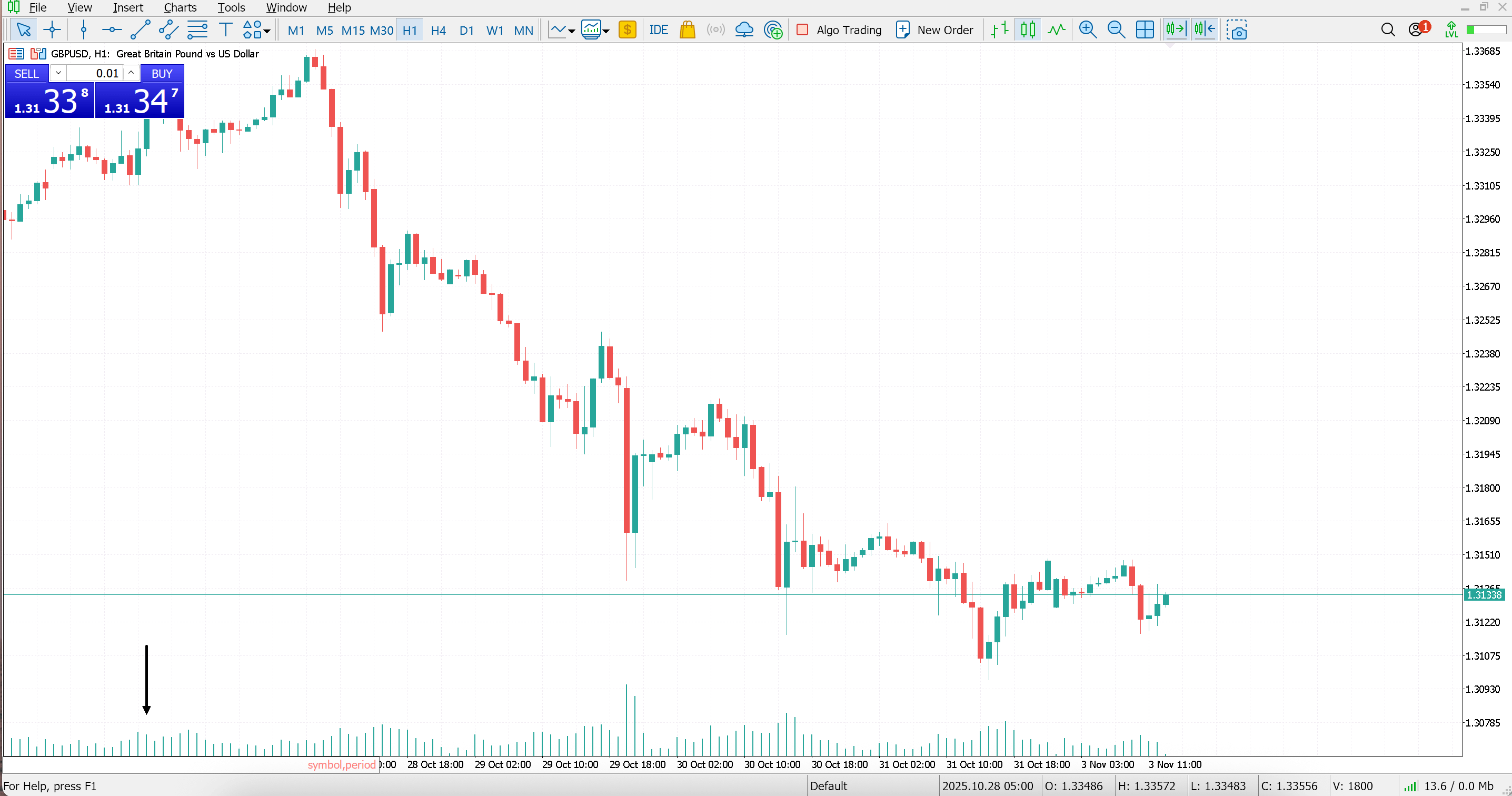
The Fast Navigation box can be used to:
- Switch between two open charts by typing the relevant symbol name.
- Change the timeframe of the open chart by entering the desired period, for example, M1, H4, or D1.
- Jump to a specific time or date by typing it directly into the box.
Pressing Enter again will close or clear the Fast Navigation box.
Tile your charts
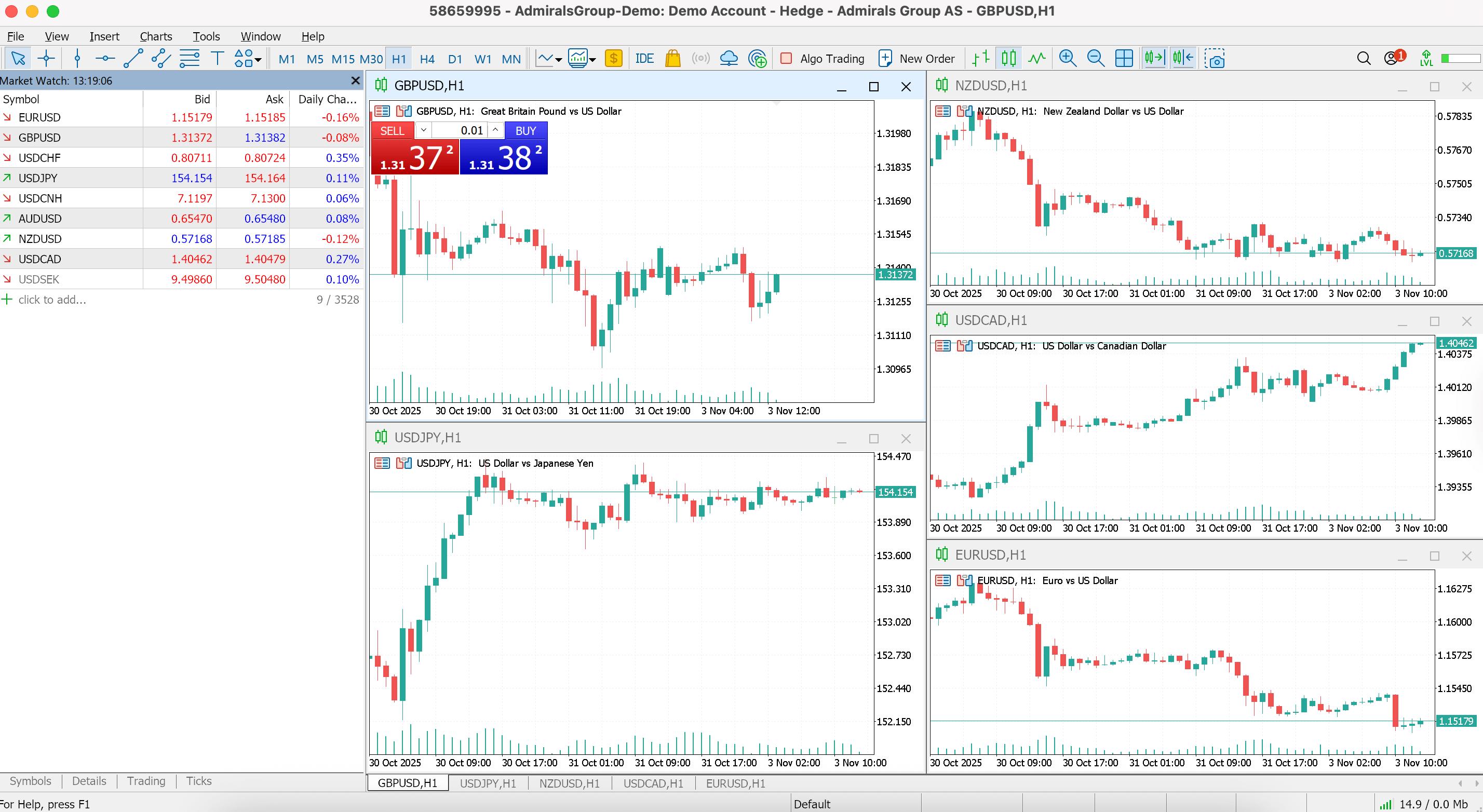
ALT + R sorts your windows so that you can see multiple charts at once. The image below shows an example of several charts that have been tiled:
Using Command Windows
The following MT5 hotkeys provide quick access to the most frequently used command windows.
Using the Crosshair Tool
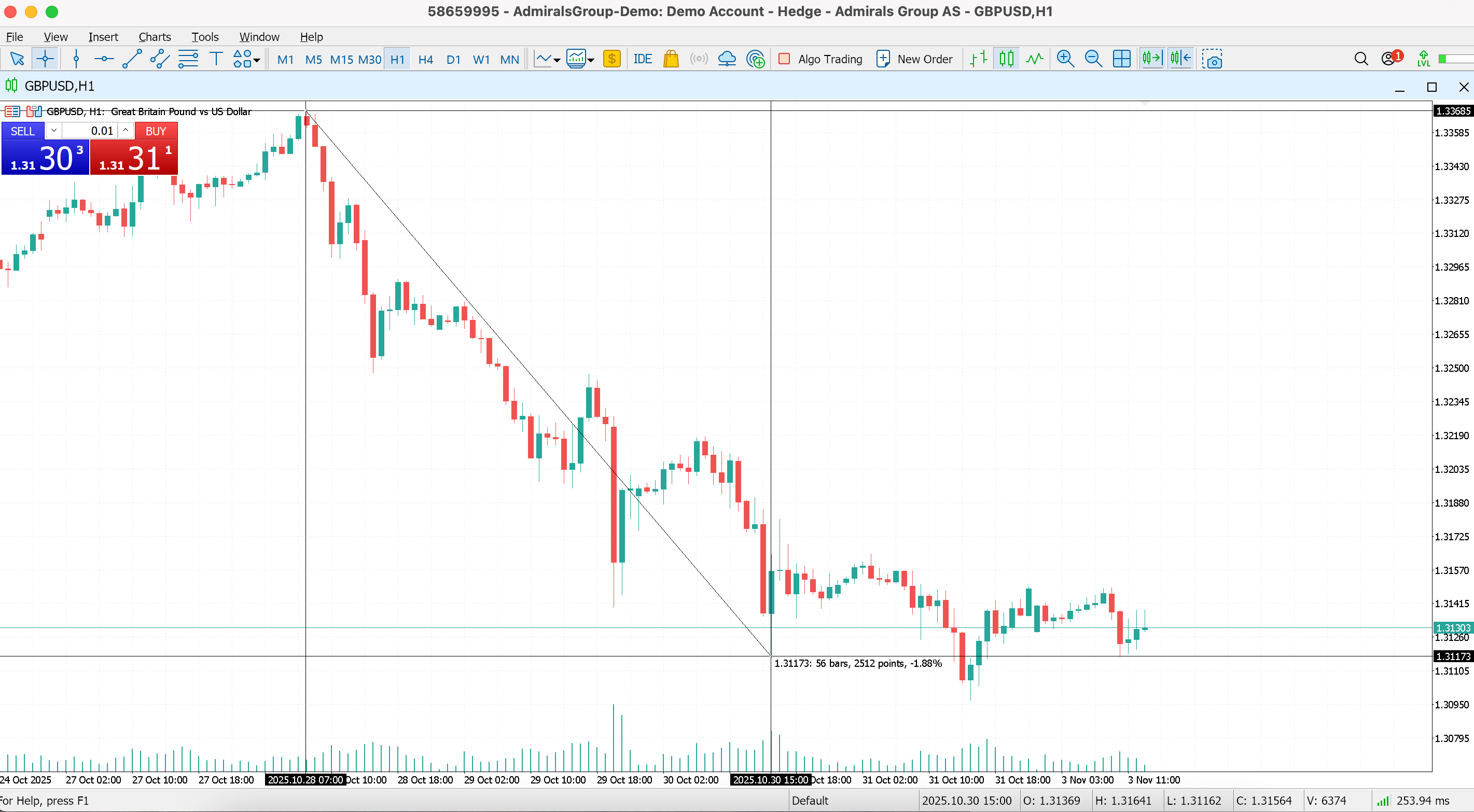
The crosshair is a straightforward but very handy feature in MetaTrader that allows making precise chart analysis. You can enable it by using the Ctrl + F hotkey. You choose one point on the chart and then another, and the crosshair tool displays the distance between them in bars, pips, and price movement, which may be useful for comparing price movements.
Keyboard Shortcuts from Other Programs
A number of MetaTrader hotkeys function exactly like familiar shortcuts that users work with in everyday software. For example, Ctrl + S saves the current chart setup. If you accidentally deleted an object, you could easily undo it with Ctrl + Z or Alt + Backspace. The standard cut, copy, paste, undo, and save shortcuts make recovering, saving, and managing chart layouts easier without disrupting the user's workflow.
MetaTrader Hotkeys that Use the Function Keys
The function keys (F1 to F12) in MetaTrader provide quick access to essential tools and settings. They’re particularly useful for speeding up analysis, managing expert advisors, and improving trading efficiency.
Setting New Hotkeys in MT4 and MT5
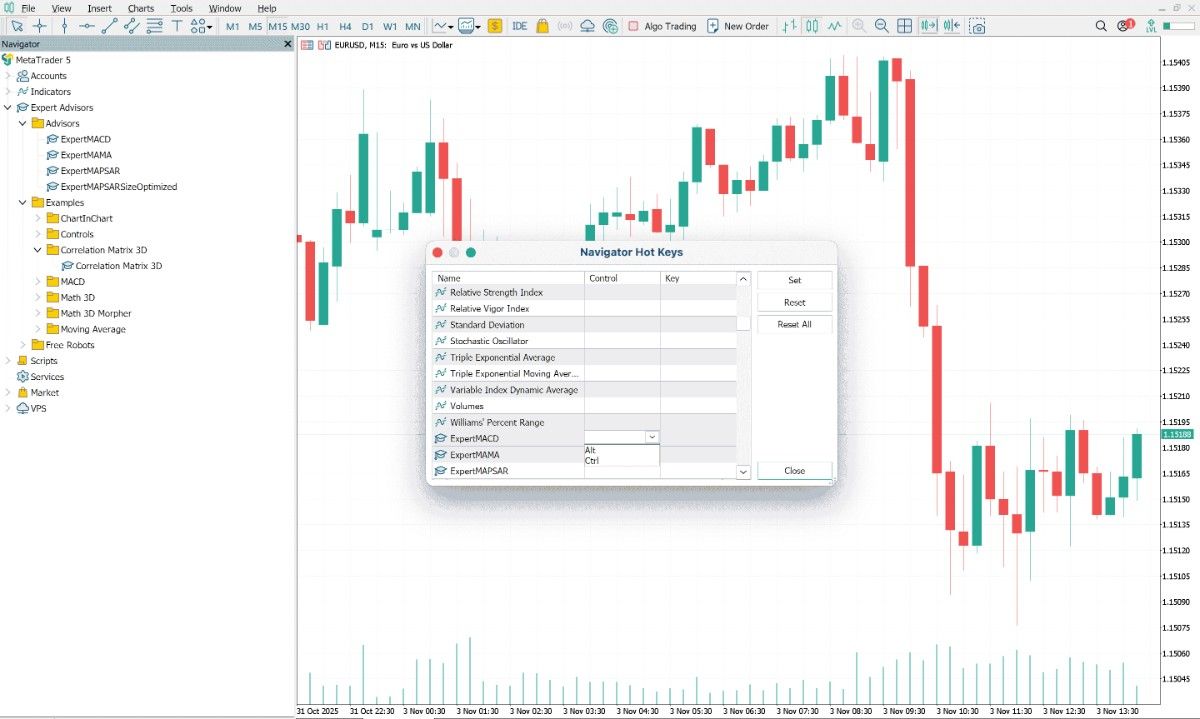
Custom hotkeys let you assign your favourite custom indicators, scripts and expert advisors to key combinations, helping you tailor how you access platform functions.
Setup Process:
- Open the Navigator window (Ctrl + N).
- Locate the indicator, script or EA you want.
- Right-click it and select “Set Hotkey…”.
- Choose a modifier (e.g., Ctrl or Alt) and specify the key combination.
- Use the shortcut to launch the tool when needed.
This is how it looks on the chart:
Here are a few things to note:
- If the hotkey doesn’t work, check that the EA or indicator is attached and enabled.
- Avoid conflicts by not reusing combinations already tied to platform defaults.
- Save your chart template after setting hotkeys so your setup persists.
Conclusion
MetaTrader keyboard shortcuts won’t necessarily make you a better trader, but they may help users navigate platform functions more quickly. Once you become familiar with them, keyboard shortcuts can offer a more efficient way to navigate the platform, although the experience may vary by user.
If you’re looking to practise using hotkeys, consider opening a demo trading account with a regulated broker. Demo trading provides access to live market prices with full MetaTrader functionality without risking your own real capital. It’s a useful way to practise trading skills and build confidence; however, it’s important to note that demo accounts cannot fully replicate the emotional and psychological factors involved in live trading.
Other articles you may find interesting:
- 15 Forex trading tools for traders
- How to trade with AI
- Free backtesting software for strategy testing
Frequently Asked Questions (FAQ)
Can I recover deleted objects in MetaTrader?
Yes, you can usually undo a deletion by using Ctrl + Z or Alt + Backspace. It restores chart objects that have recently been removed, such as lines or indicators.
How do I take a screenshot of a chart?
Save your chart as an image by pressing Ctrl + S.
What’s the difference between MT4 and MT5 shortcuts?
While most key commands are similar, MT5 shortcuts include additional functions like enhanced chart management, toolbox access, and integrated strategy tester controls.
What are the most important shortcuts for beginners?
Common ones used include F9 for a new order, Ctrl + M for Market Watch, and F8 for the adjustment of chart properties. But it still depends on personal preference and usability.
About Admirals
Admirals is a multi-award-winning, regulated Forex and CFD broker, offering trading on over 8,000 financial instruments via the world's most popular trading platforms: MetaTrader 4 and MetaTrader 5.
The given data provides additional information regarding all analysis, estimates, prognosis, forecasts, market reviews, weekly outlooks or other similar assessments or information (hereinafter “Analysis”) published on the websites of Admirals investment firms operating under the Admirals trademark (hereinafter “Admirals”) Before making any investment decisions please pay close attention to the following:
- This is a marketing communication. The content is published for informative purposes only and is in no way to be construed as investment advice or recommendation. It has not been prepared in accordance with legal requirements designed to promote the independence of investment research, and that it is not subject to any prohibition on dealing ahead of the dissemination of investment research.
- Any investment decision is made by each client alone whereas Admirals shall not be responsible for any loss or damage arising from any such decision, whether or not based on the content.
- With view to protecting the interests of our clients and the objectivity of the Analysis, Admirals has established relevant internal procedures for prevention and management of conflicts of interest.
- The Analysis is prepared by an analyst (hereinafter “Author”). The Author Amrita Kundu is a contractor for Admirals. This content is a marketing communication and does not constitute independent financial research.
- Whilst every reasonable effort is taken to ensure that all sources of the content are reliable and that all information is presented, as much as possible, in an understandable, timely, precise and complete manner, Admirals does not guarantee the accuracy or completeness of any information contained within the Analysis.
- Any kind of past or modelled performance of financial instruments indicated within the content should not be construed as an express or implied promise, guarantee or implication by Admirals for any future performance. The value of the financial instrument may both increase and decrease and the preservation of the asset value is not guaranteed.
- Leveraged products (including contracts for difference) are speculative in nature and may result in losses or profit. Before you start trading, please ensure that you fully understand the risks involved.